

Make and find task lists
Tasks live in task lists. Each list is pinned to the spot on a sheet where the work is, has a number such as Task List #3, and holds its tasks and its own comments. Admins and Managers make task lists; everyone works from them.
Start a task list
Section titled “Start a task list”- Open the sheet, tap the round toolbox button in the bottom-right corner, then Tasks.
- Tap the spot on the sheet where the work is (click it on a Mac). New Task List opens on its first task, ready to type.
- Fill in the task and tap Save. See Add and assign tasks.
- Tap ADD TASK for another task, or close the list with the X.
The list is made when you save its first task, and its pin appears on the sheet for everyone.
Find a list
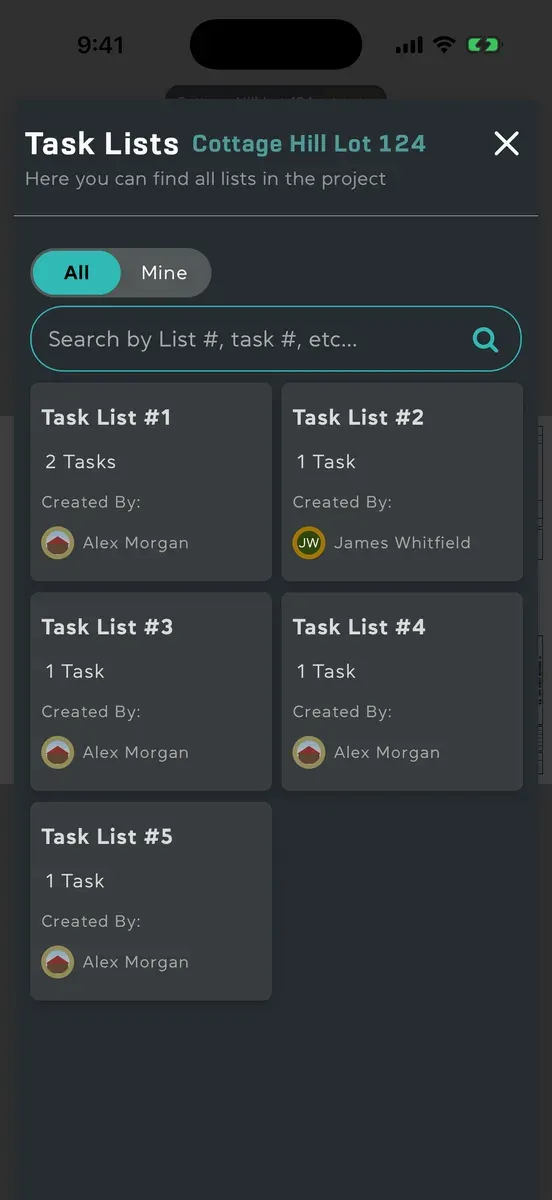
Section titled “Find a list”- Tap Tasks in the toolbar at the top of a sheet. Task Lists opens, with the lists in order of their numbers.
- To narrow them, type in the search box: a list’s number (with or without #), a task’s number, a word from a task, or the name of whoever made the list.
- Tap a list to open it.
You can also tap a list’s pin on the sheet. See Task lists on the sheet. To see only the lists with something for you, use Mine.
What’s in an open list
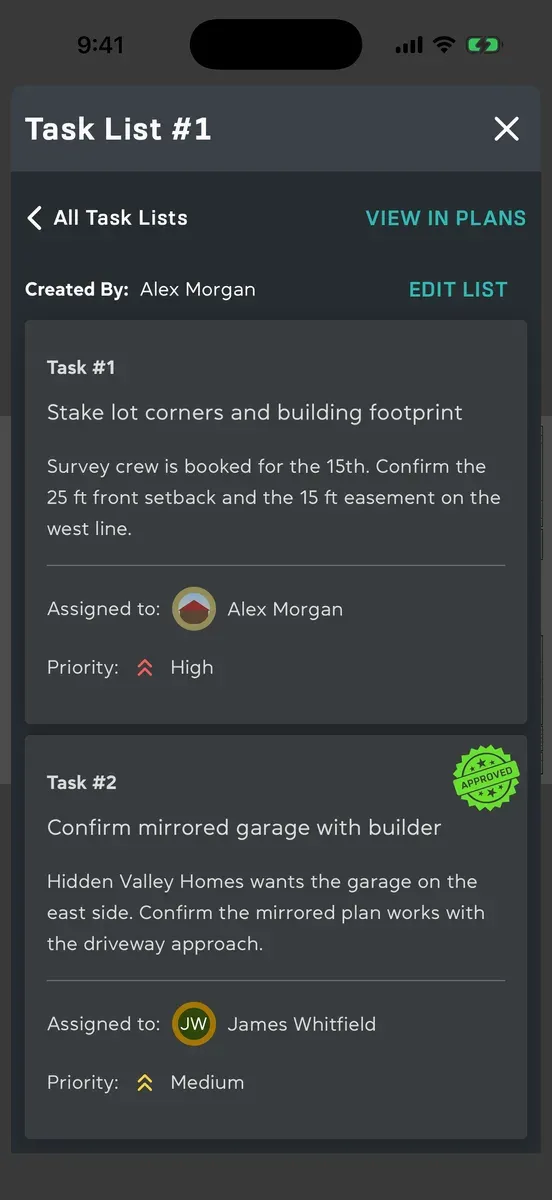
Section titled “What’s in an open list”- All Task Lists at the top takes you back to every list in the project.
- VIEW IN PLANS shows the list’s pin on its sheet.
- Created By: says who made the list.
- EDIT LIST, for Admins and Managers, adds, changes and deletes tasks.
- The tasks, with VIEW ALL under them when there are more than fit.
- COMMENTS, for everyone on the list. See Comment on a task list.
Delete an empty list
Section titled “Delete an empty list”A list with no tasks can be deleted by whoever made it, or by an Admin. Open it, tap DELETE LIST, and the list and its pin go. “Task list deleted” shows for a few seconds with Undo, in case you didn’t mean it. Anyone who has the list open is told it was deleted.
Good to know
Section titled “Good to know”- Crew members see the lists they have a task on, and a project opens on its task lists for them.
- On a wide screen, such as a tablet held wide or a large window on a Mac, Task Lists shows the open list beside the lists rather than over them. Narrow the window and the list carries on over the plan, with anything you typed still there.
- With a keyboard on an iPad or Mac, Command-F puts the cursor in the search box.
- Offline, Task Lists opens with what’s saved on your device. A list you start offline is called New Task List until it’s sent and gets its number.