

Draw on a sheet
Who canAdminManagerCrew
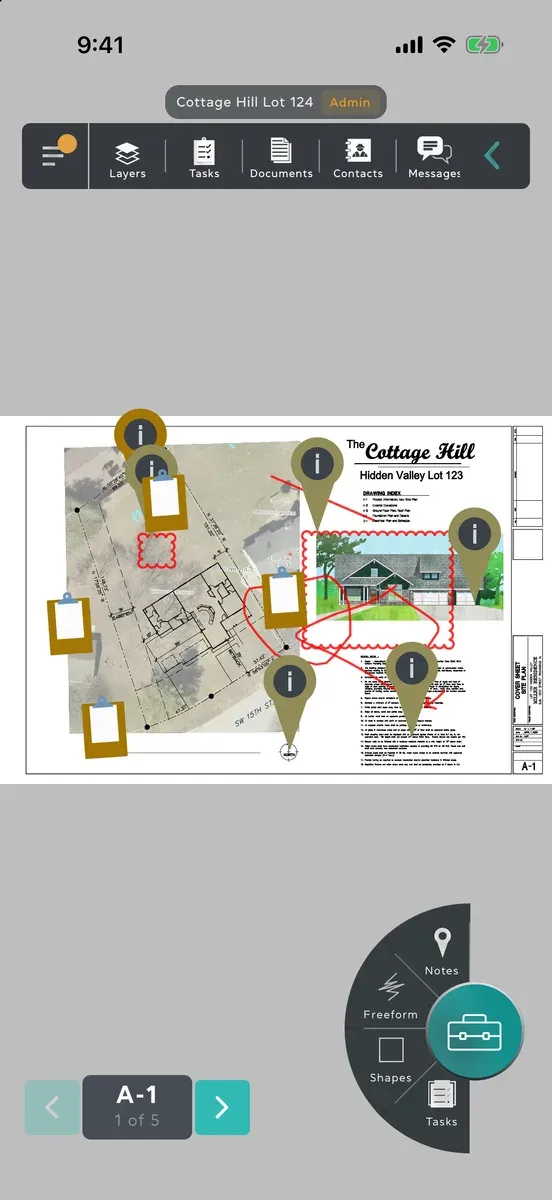
Markups are drawings on top of a sheet: freehand strokes, rectangles, revision clouds and arrows. Everyone on the project sees them as soon as you publish, without reloading the sheet.
Draw a markup
Section titled “Draw a markup”-
Open the sheet you want to mark up.
-
Tap the round toolbox button in the bottom-right corner of the sheet (click it on a Mac). Its tools open around it: Notes, Freeform, Shapes, and for Admins and Managers Tasks.
-
Pick a tool:
- Freeform draws freehand strokes.
- Shapes draws a Rectangle. Tap Shape Type to pick a Revision Cloud or an Arrow instead.
-
If you want a different look, tap Stroke Color, Stroke Width or Stroke Opacity and choose. There are five colours, four widths, and opacity from 10% to 100%.
-
Draw on the sheet with your finger. On a Mac, drag with the mouse. You can draw several strokes or shapes before you publish them.
-
Tap Publish.
What you published stays where you drew it, and you can tap it straight away to change it.
Change your mind before publishing
Section titled “Change your mind before publishing”Tap the X beside Publish. If you’ve drawn anything, the app asks “Do you want to delete your markup?”: Delete throws the drawing away, and Save publishes it.
Good to know
Section titled “Good to know”- Once you’ve drawn something, the other tools are greyed out until you publish it or throw it away.
- While a tool is in your hand you stay on this sheet. Publish or close the tool to move to another one.
- You can move, resize, restyle and delete your own markups later, and Admins can do the same to anyone’s. See Change or delete a markup.
- Others on the project get a New markup notification, which opens the sheet with your markup picked out.
- Every tool works offline. What you publish shows at once, marked Waiting to send, and goes out when you’re back online. See Work offline.
- On an iPad, a stroke can start right at the edge of the screen without leaving the app.
- On a Mac, the scroll wheel or two fingers on a trackpad zoom the sheet, and a double-click on an empty part puts it back the way it opened.