

Your notifications
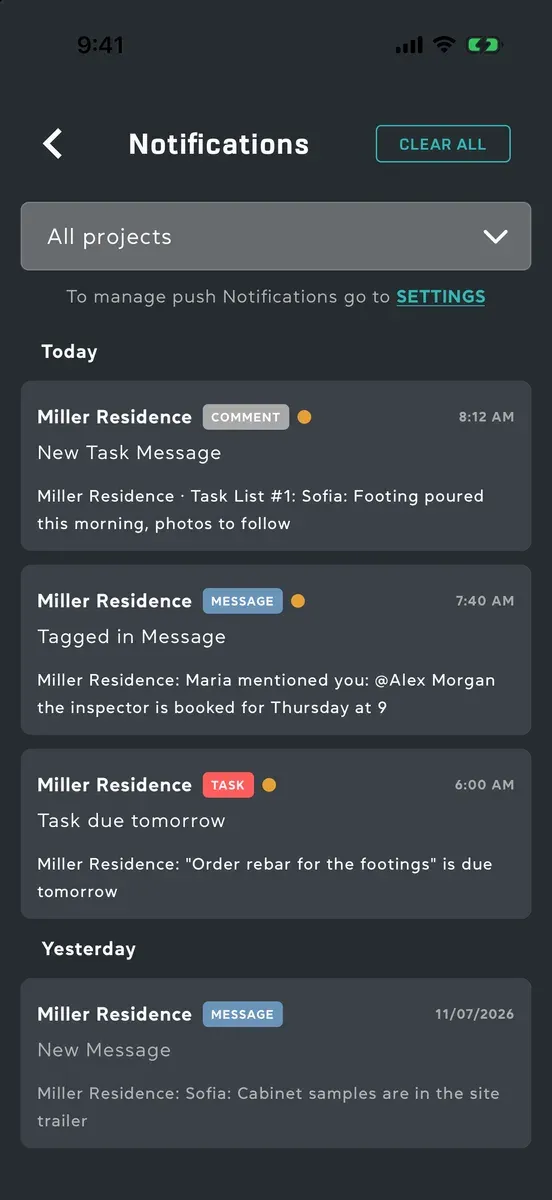
Everything ProPlans tells you about is kept in one list: new messages, mentions, tasks, comments, notes, markups, documents, plans and invitations. It fills up whether or not push notifications are on.
Open your notifications
Section titled “Open your notifications”- Open the menu. On the project list of a tablet held wide, or of a wide window on a computer, it is already open down the side.
- Tap Notifications. A dot beside it means something is unread.
Notifications are grouped under Today, Yesterday and Older. Each one shows its project (or ProPlans Account, for one about your account, such as your storage), what kind it is, who caused it and when.
To see one project’s notifications only, pick it in the box at the top. All projects shows everything again.
Open what a notification is about
Section titled “Open what a notification is about”Tap it. It is marked read, and you land on the thing itself:
- A message opens the conversation at that message, outlined in yellow for a moment.
- A task, comment or reminder opens the task list, scrolled to the task.
- A note or markup opens its sheet, with it picked out.
- A document opens the project’s Documents, scrolled to it.
- A storage notice shows what you’re using and how to get more space.
Mark as unread, or clear
Section titled “Mark as unread, or clear”Swipe the notification left, then tap Clear, or Mark as unread on one you’ve read. On a tablet, its ••• offers the same.
Click the notification’s •••, or right-click it, and choose Clear or Mark as unread.
Clear all at the top clears the whole list, or only the project picked at the top.
Requests for Crew access
Section titled “Requests for Crew access”When a Viewer asks for Crew access, the project’s Admins and Managers get a Crew access requested notification with Approve and Decline on it. Once one of them answers, it goes from everyone else’s list. See Roles and access levels.
Unread counts
Section titled “Unread counts”- The project list: each project’s card has a number for everything unread in that project.
- The menu: a dot beside Notifications.
- The app’s icon shows a count too, on a Mac in the Dock.
Opening a conversation from Messages clears its marks as well, without going through the list.
Good to know
Section titled “Good to know”- Offline, marking and clearing still work, and wait in your Outbox: see Work offline.
- Pull the list down to check for new ones.
- Muted conversations add nothing to this list: see Mute, delete and search conversations.