

Archive, leave or delete a project
All of these start from the ••• on the project’s card on the project list (tap it, or click it on a Mac). What the menu offers depends on whether you’re the project’s owner, the person who created it:
| To | The owner chooses | Everyone else chooses |
|---|---|---|
| Archive it | Archive for all | Archive for me |
| Bring it back | Restore for all | Restore for me |
| Leave it | Not offered | Leave Project |
| Delete it | Delete | Not offered |
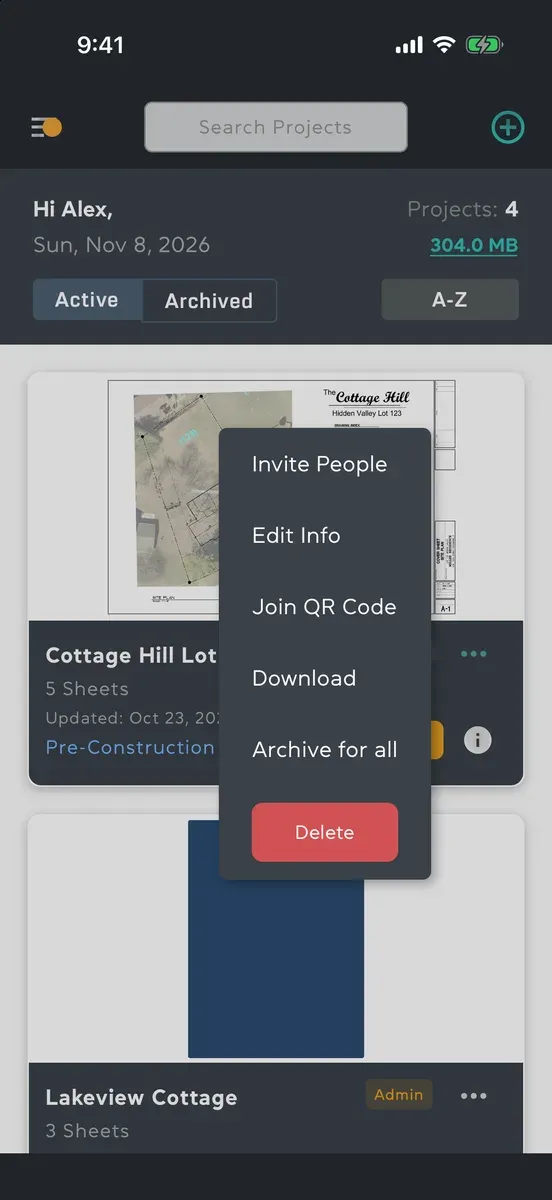
Archive a project
Section titled “Archive a project”- Tap ••• on the project’s card and choose Archive for all or Archive for me.
- Tap Archive to confirm.
The project moves from Active to Archived on your list.
- Archive for all archives it for everyone and makes it read-only. Anyone in it can still open it to look through its sheets, documents, messages and tasks, and download it for offline use, but nobody can change anything. A band at the top of the project says who archived it; close it with its ×.
- Archive for me moves it to your own Archived list only. Nobody else sees a change, and you can still work in it.
Restore an archived project
Section titled “Restore an archived project”- Switch the project list to Archived.
- Tap ••• on the card and choose Restore for all or Restore for me.
- Tap Restore.
The project is back under Active, with everything in it as it was. The owner can also tap Restore for all in the band at the top of the project.
Leave a project
Section titled “Leave a project”- Tap ••• on the project’s card and choose Leave Project.
- Tap Leave.
The project goes from your list and you’re taken off its Contacts. Nothing changes for anyone else. The owner can’t leave their own project: they archive or delete it instead.
Delete a project
Section titled “Delete a project”Only the owner can delete a project, and it goes for everyone in it.
- Tap ••• on the project’s card and choose Delete.
- Read the message: the project can be restored for 60 days. Tap Delete.
Its files keep counting towards your storage until the 60 days are up.
Get a deleted project back
Section titled “Get a deleted project back”- Open the menu, tap Profile, then tap your storage figure.
- Tap Recently deleted projects.
- Tap Restore beside the project, and confirm.
It comes back for everyone, with its sheets, documents and messages. Each project there shows the days it has left, and Last day on its final day. See Storage.
Good to know
Section titled “Good to know”- All of these work without a connection. The change shows at once and is sent once you’re back online.
- Leaving or deleting a project also takes its download off your device.
- Swiping a card doesn’t archive it: use the ••• menu.
- An archived-for-all project’s menu has no Invite People, Edit Info or Join QR Code. Download is still there.