

Settings and language
Settings apply to all your projects. Open the menu and tap Settings (click it on a Mac). It opens over what you were looking at, and closes back to it.
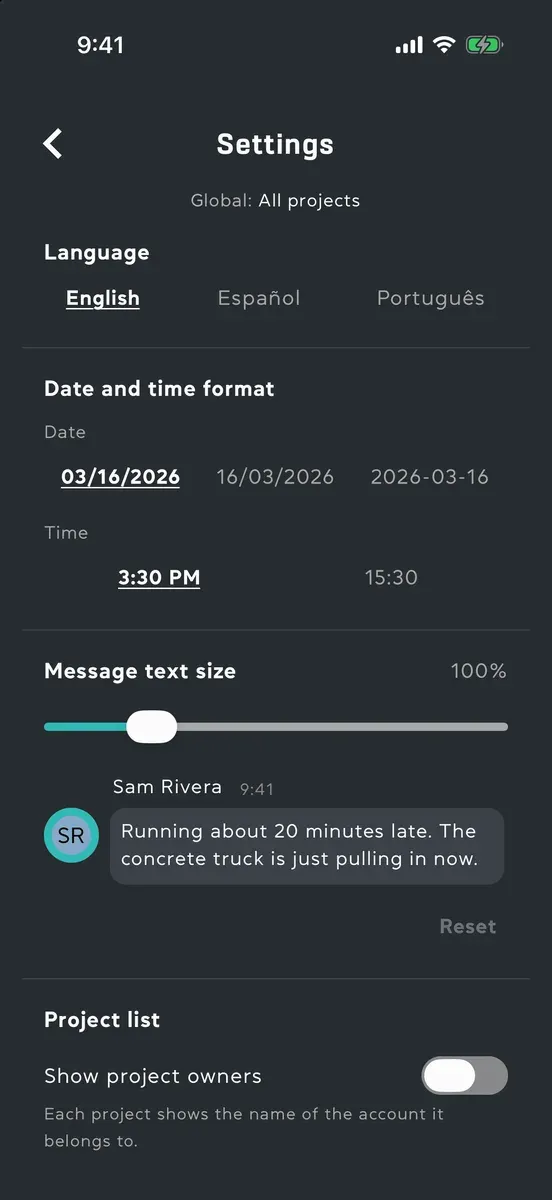
Language
Section titled “Language”- Open the menu, then Settings.
- Under Language, pick English, Español or Português.
The app changes language straight away. Your account keeps the choice, so other devices you sign in on open in it, and the emails and notifications ProPlans sends you arrive in it. You can change it without a connection too: your account follows once you’re back online. Before you sign in, the sign-in screen has a language list of its own.
Messages, task comments, notes and task details someone writes in another language appear in yours, with Show original to see what they wrote.
Date and time format
Section titled “Date and time format”Under Date and time format, tap the date written the way you want it under Date (month first, day first or year first), and under Time the 12-hour or the 24-hour clock. Until you pick, the way your language writes them is marked. Every date and time in the app follows, and your choice follows you to every device you sign in on.
Message text size
Section titled “Message text size”Drag the Message text size slider, from 85% to 160%, and the example message beside it shows the size. It sets the text in messages, task comments and the previews in the conversation list. Reset puts it back to 100%. Pinching a conversation changes the same setting.
Show project owners
Section titled “Show project owners”Under Project list, turn on Show project owners, and each card on your project list says whose account the project belongs to, under its name.
Notifications
Section titled “Notifications”Choose which push notifications you get. See Notification settings.
Permissions
Section titled “Permissions”Permissions shows what ProPlans may use on this device, and what each is for: Notifications, Camera and Contacts, and Photos on an iPhone or iPad. A Mac lists Notifications and Camera.
- Turn a switch on to be asked for that permission.
- If you said no before, the switch opens your device’s settings instead, where you can allow it.
- To take a permission away, use your device’s own settings. Open Settings takes you there.
Files on this device
Section titled “Files on this device”Files on this device shows how much space ProPlans takes on this device: Cached files, the sheets, documents and photos you’ve opened, and Downloaded projects, the ones you downloaded for offline use. Clear removes the cached files and keeps your downloaded projects. Anything cleared downloads again the next time you open it.