

Show and hide markups with Layers
A busy sheet can carry dozens of drawings, notes and task lists. Sheet Layers lists them by kind for the sheet you’re on, takes you to each one, and hides the ones in your way. Anyone on the project can use it, Viewers too.
Find something on the sheet
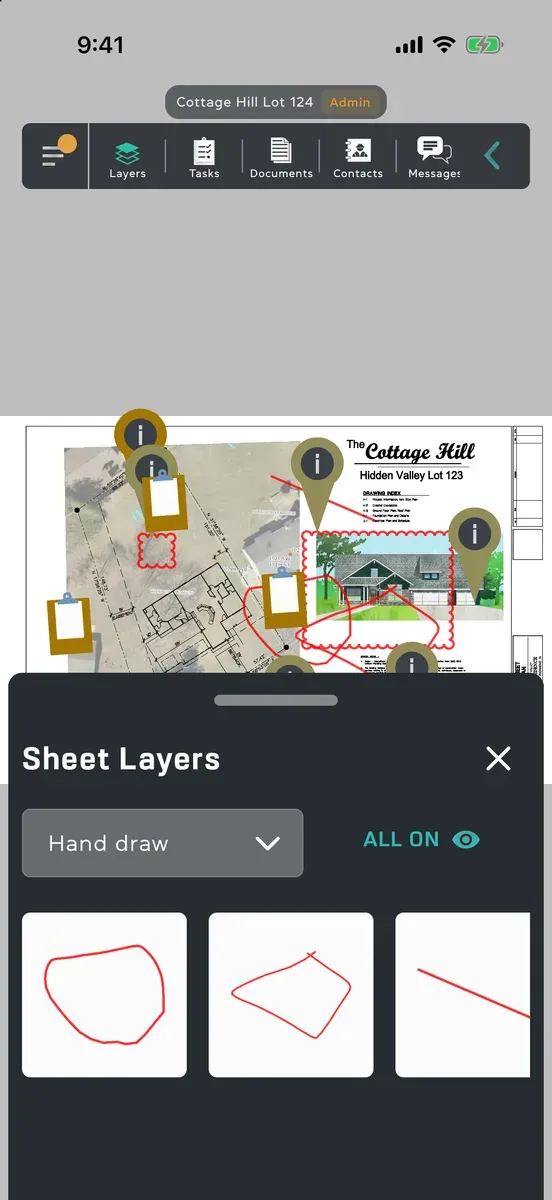
Section titled “Find something on the sheet”- On a sheet, tap Layers in the toolbar at the top (click it on a Mac). Sheet Layers opens at the bottom of the screen.
- Pick a kind from the list: Hand draw, Notes, Shapes or Tasks.
- Tap an item. The sheet moves so that it sits in view above the panel.
Drawings and shapes show as pictures. Notes show their first words, the author’s trade and when they were last updated. Task lists show their number, how many tasks they have and who made them.
Hide or show one
Section titled “Hide or show one”- In Sheet Layers, tap the item to pick it.
- Tap the eye. It’s crossed out, and the item is gone from your sheet.
- Tap the eye again to bring it back.
Hide or show them all
Section titled “Hide or show them all”The button beside the list hides or shows every item of the kind you picked, on this sheet:
- All on means they’re all showing. Tap it to hide them all, and it reads All off.
- Some on means some are hidden. Tap it to show them all again.
Good to know
Section titled “Good to know”- Hiding changes your view, not anyone else’s, and stays as you left it when you come back to the project. A note you hide keeps its Updated time, for you and for everyone else.
- With an item picked, a trash can shows beside the eye if it’s yours to delete, or on anything if you’re an Admin. See Change or delete a markup.
- The Markup Editor doesn’t open while Sheet Layers is open. Close it to change a markup.
- With a list open from its pin on the sheet, Layers opens on Tasks with that list picked.
- With Mine on, the sheet shows only the pins of lists with a task of yours, while Tasks in Layers still lists every list on the sheet.
- In a project with no plans yet, Layers is dimmed.
- On a tablet or computer, the panel holds to a comfortable width in the middle of the screen.