

View a sheet
Opening a project shows one of its sheets across the whole screen, with the toolbar at the top and, at the bottom left, the arrows and the sheet counter.
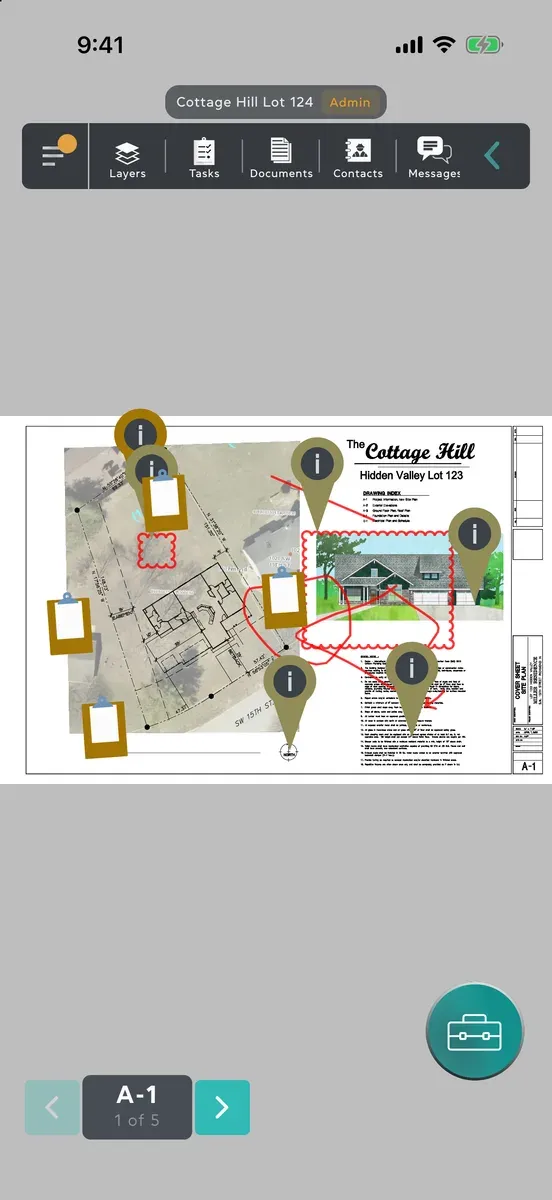
Zoom and move around
Section titled “Zoom and move around”- Pinch to zoom in and out, and drag to move around.
- Double-tap a blank part of the sheet to go back to the whole sheet.
- Zoom with the scroll wheel, or with two fingers on a trackpad, and drag to move around.
- Double-click a blank part of the sheet to go back to the whole sheet.
Zoomed in, even the small print in the title block is sharp. Double-tapping a note or a shape doesn’t move the view, and with a drawing tool chosen it draws instead.
Go to another sheet
Section titled “Go to another sheet”- The arrows either side of the counter go to the previous and next sheet.
- The counter shows the sheet’s number and where it is, such as 3 of 12. Tap it to open All Plans, every sheet in the project, then tap a sheet’s picture, number or name to open it.
Find a sheet in All Plans
Section titled “Find a sheet in All Plans”- Type in the search box at the top to find sheets by number or name. On a Mac, Command-F puts you in it.
- To see only some disciplines, tap Filters, pick them under Filter plans by and tap Apply. Reset all clears them.
Share, download or print sheets
Section titled “Share, download or print sheets”Everyone in a project can share its sheets as PDFs.
- One sheet: in All Plans, open the sheet’s menu and choose Share. Press and hold the sheet, or tap the ••• beside its number on a tablet; on a Mac, click ••• or right-click it.
- Every sheet: tap ⋮ at the top of All Plans and choose Share All Sheets.
- Some of them: follow these steps.
- Tap ⋮ at the top of All Plans and choose Rearrange, Share or Delete, or Share Sheet if that’s what it says for you.
- Tick the sheets you want, or tap Select All.
- Tap Share, Download or Print.
Download saves one PDF of every sheet you ticked, named after the project, where you choose. Print opens the print preview. Both need an internet connection.
Good to know
Section titled “Good to know”- What other people draw on a sheet appears by itself while you look at it.
- Sheets you’ve opened before open faster, because they’re kept on your device. To open sheets without a connection, download the project first.
- A sheet still being prepared after an upload says This sheet is still being prepared. and opens by itself once its page is ready.
- On a tablet, turning the device keeps you on the part of the sheet you were looking at.
- The arrows and the counter step aside while you draw or place a note.
- On a Mac, the zoom in the View menu is for PDF documents. On a sheet, use the scroll wheel or the trackpad.