Skip to content

Roles and access levels

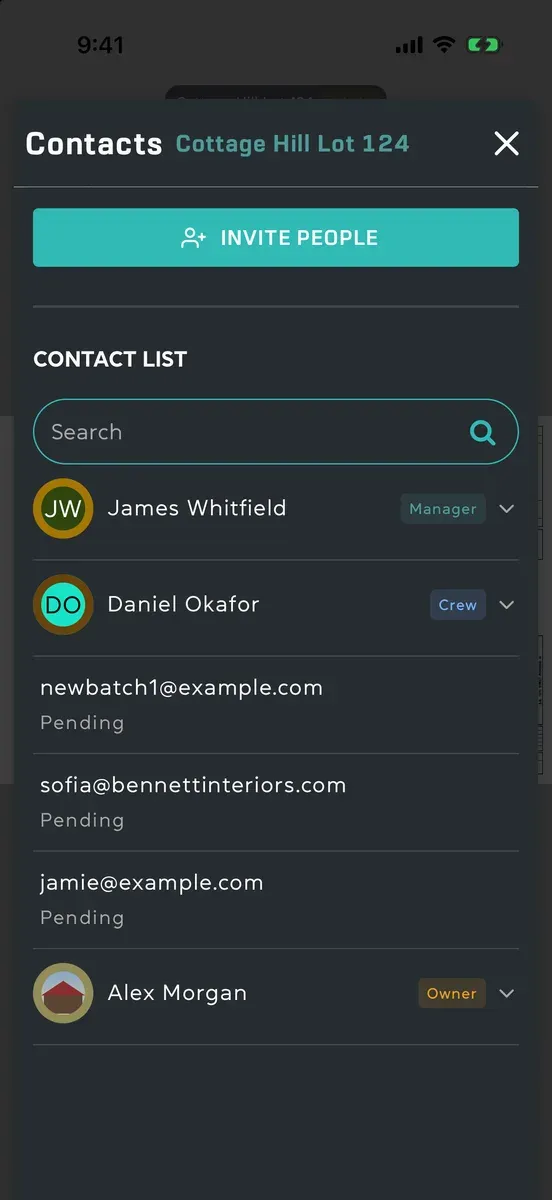
Everyone in a project has an access level: Admin, Manager, Crew or Viewer. It decides what they can do in that project, and it can be different in each project they’re in. Your level shows on the project’s card and at the top of the project; everyone’s shows beside their name in Contacts.

A project's Contacts, with each person's access level beside their name and invitations still pending.
  • Owner: whoever created the project. In Contacts their badge reads Owner. The owner is an Admin, and the only one who can edit the project’s information, archive it for everyone or delete it. Files anyone uploads to the project count against the owner’s storage.
  • Admin: runs the project: everything a Manager does, and also sets people’s access levels, removes anyone but the owner, changes or deletes anyone’s markups and documents, and deletes anyone’s notes.
  • Manager: runs the day-to-day work: sheets, task lists and tasks, approving work, and documents.
  • Crew: does the work: draws markups and adds notes, sends in work on their tasks, uploads documents. They see only the task lists with a task of theirs.
  • Viewer: looks, comments and talks: opens sheets, documents and task lists, comments on tasks and sends messages, but adds nothing to the plans.

Your trade (Electrician, Plumbing, Inspector…) is your role, a different thing: it’s a label and a colour, and doesn’t change what you can do.

Can they… Admin Manager Crew Viewer
Open the project’s sheets, documents, tasks and messages Yes Yes Yes Yes
Change the project’s status Yes Yes No No
Edit its information, archive or restore it for everyone, delete it Owner only No No No
Download it for offline use Yes Yes Yes Yes
Archive it just for themselves, or leave it Yes, but not the owner Yes Yes Yes
Can they… Admin Manager Crew Viewer
Invite people As Manager, Crew or Viewer As Manager, Crew or Viewer As Crew or Viewer As Viewer
Take back an invite they sent, until it’s accepted Yes Yes Yes Yes
Change someone’s access level Yes No No No
Remove someone from the project Anyone but the owner People they invited No No
Turn joining by QR code or link on or off, replace the code Yes No No No
Show and share the join code, once joining is on Yes Yes Yes Yes
Ask for Crew access No No No Yes
Approve or decline a request for Crew access Yes Yes No No
Can they… Admin Manager Crew Viewer
Open sheets and move around them Yes Yes Yes Yes
Share, download or print sheets Yes Yes Yes Yes
Upload sheets, change their details, rearrange and delete them Yes Yes No No
Draw markups and add notes Yes Yes Yes No
Change or delete markups Anyone’s Their own Their own No
Change notes Their own Their own Their own No
Delete notes Anyone’s Their own Their own No
Hide markups, notes and task lists on their own screen Yes Yes Yes Yes
Can they… Admin Manager Crew Viewer
See task lists All All Only lists with a task of theirs All
Create task lists, and add, change, assign and delete tasks Yes Yes No No
Comment on a task list Yes Yes Yes Yes
Send in work on a task assigned to them Yes Yes Yes Yes
Approve work sent in on a task they’re not on Yes Yes No No
Delete an empty task list Any Their own No No
Can they… Admin Manager Crew Viewer
Open documents Yes Yes Yes Yes
Upload documents Yes Yes Yes No
Change or delete a document, or choose who can open it Anyone’s Their own Their own No
Add a document category Yes Yes Yes No
Rename, delete or hide categories Yes Yes No No
Send messages and start conversations Yes Yes Yes Yes
  • Private documents open only for the person who uploaded them and the people they’re shared with, whatever anyone’s level.
  • Admin can’t be given when you invite someone or change their access level: the choices are Manager, Crew and Viewer. You can’t change your own level, or the owner’s.
  • People who join with a QR code, link or code join as Viewers. A Viewer can ask for Crew access from their own row in Contacts.
  • A new level needs no signing out. When an Admin changes someone’s level, what they can do changes to match without them signing out and in.
  • A project archived for everyone is read-only for all, Admins included, until its owner restores it.