

View, share and download documents
Everyone in a project can open its public documents, and the private ones they have been given access to. A small orange lock beside a document means it is private.
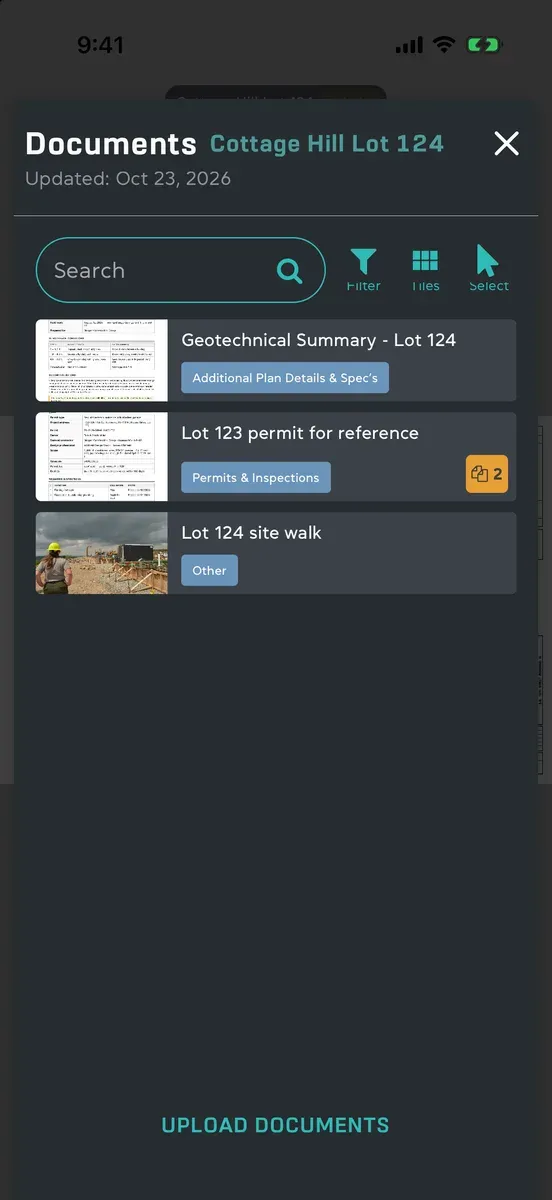
Find and open a document
Section titled “Find and open a document”- Open the project and tap Documents in the toolbar at the top of the plan.
- Type in the search box, or tap Filter to show one category or more.
- Tap the document. It opens full screen, with its name, its Uploaded date and its category at the top.
The button beside Filter switches between List and Tiles, and ProPlans remembers the one you used last.
On a tablet held wide, or a wide window on a computer, the open document sits beside the list, so you can tap from one to the next. Make the window narrower and it becomes a screen of its own. See Tablets.
Move through a document
Section titled “Move through a document”- Turn the page with the arrows either side of the page count.
- Jump to a page: tap the page count, then a number in the Go to page grid.
- Zoom in by pinching or double-tapping the spot you want. Drag to move around; the page stays where you leave it. A double tap zooms back out.
- For a PDF on a Mac, you can also use View → Zoom In, Zoom Out and Zoom to Fit in the menu bar.
Share or download
Section titled “Share or download”The share button at the top of an open document hands the file to your device’s own share options, so you can send it however you send anything else.
From the list, every document also has a menu with Share and Download. Download saves the file where you choose on your device.
Press and hold the document. In the list view you can also swipe it left. On a tablet, its ••• opens the same menu.
Click the ••• on the document, or right-click it.
To send several at once, tap Select, tick them and tap Share: they go as one PDF. See Organize documents.
Good to know
Section titled “Good to know”- Opened once, ready offline. A document you have opened before opens again straight away, even without a connection. One you have never opened can’t load offline. See Work offline.
- Always up to date. A document someone has changed, such as a page turned or deleted, opens as it is now. New and deleted documents show in your list as they happen.
- From a message or task. A linked document opens in the same viewer, with its lock if it is private.
- With a keyboard, Command-F goes to the search box and Escape closes Documents. See Keyboard shortcuts.