

Send in and approve work
A task is done when someone on it sends in their work and an Admin or Manager approves it. Until then, its card shows where it stands.
Where a task stands
Section titled “Where a task stands”- To do: the card shows its due date after Due:, in red once the day has passed.
- Sent in: the card is flagged Ready for review for Admins and Managers, and In Review for everyone else.
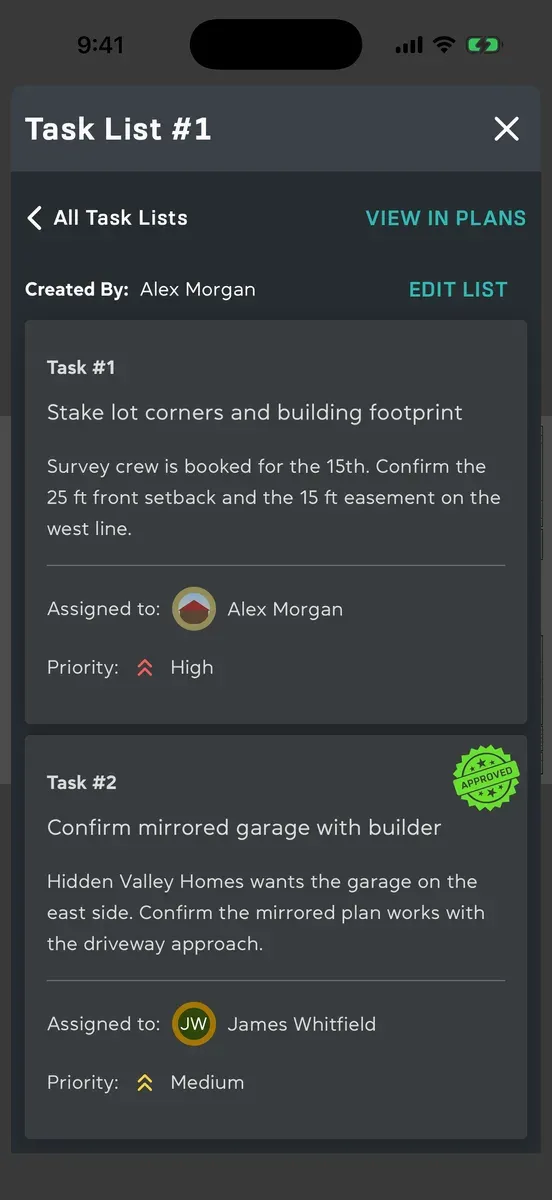
- Approved: the card has an approved stamp, and its due date is never shown in red.
Send in your work
Section titled “Send in your work”Anyone on the task can do this, whatever their access level.
- Open the task’s list and tap the task (click it on a Mac). Its buttons open under it.
- Tap ATTACH DETAILS. Attach work details opens.
- Under Description, say what you did. You can’t send without it.
- Add photos, videos, documents or a plan sheet with the paper clip beside Attachments. You can add up to 10 photos.
- Tap Send.
“Details sent” shows. The project’s Admins and Managers, and whoever made the list, get a Task ready for review notification. To change what you sent, tap the task, then VIEW DETAILS, then Edit Details, and Save. There’s one set of work details per task: if several people are on it, any of them can edit it.
Approve work
Section titled “Approve work”For Admins and Managers. You can’t review a task you’re on yourself.
- Open the list and tap the task flagged Ready for review, then REVIEW. Or tap the Task ready for review notification, which opens the work straight away.
- Look through Review work: the photos, the description, any documents, and under Plan sheets the list’s pin on its sheet.
- Tap Approve.
“Task approved” shows, the task is done for everyone, and everyone on it gets a Task approved notification. You can also approve a task from its card when someone links it in a comment. See Comment on a task list.
Due dates and reminders
Section titled “Due dates and reminders”Everyone on a task still to be done is reminded the day before it’s due, and again on the day. Reminders go out in the morning, US time, and tapping one opens the task in its list. A task already sent in for review gets no reminder. To stop them, turn off Task reminders in your notification settings. To change a due date, see Add and assign tasks.
Good to know
Section titled “Good to know”- Sending work in needs a connection. Offline, the app says so and keeps what you wrote. Approving works offline: it shows at once and is sent when you’re back online.
- There’s no button to turn work down. If something’s missing, say so in the list’s comments; the person can change what they sent with Edit Details.
- If you close the work form without sending, what you wrote and the photos you added are still there next time, even after the app is closed.
- On a Mac, the paper clip’s Add Media opens the Mac’s file window, and Take Picture opens the camera in a window.