

Conversations, groups and trade chats
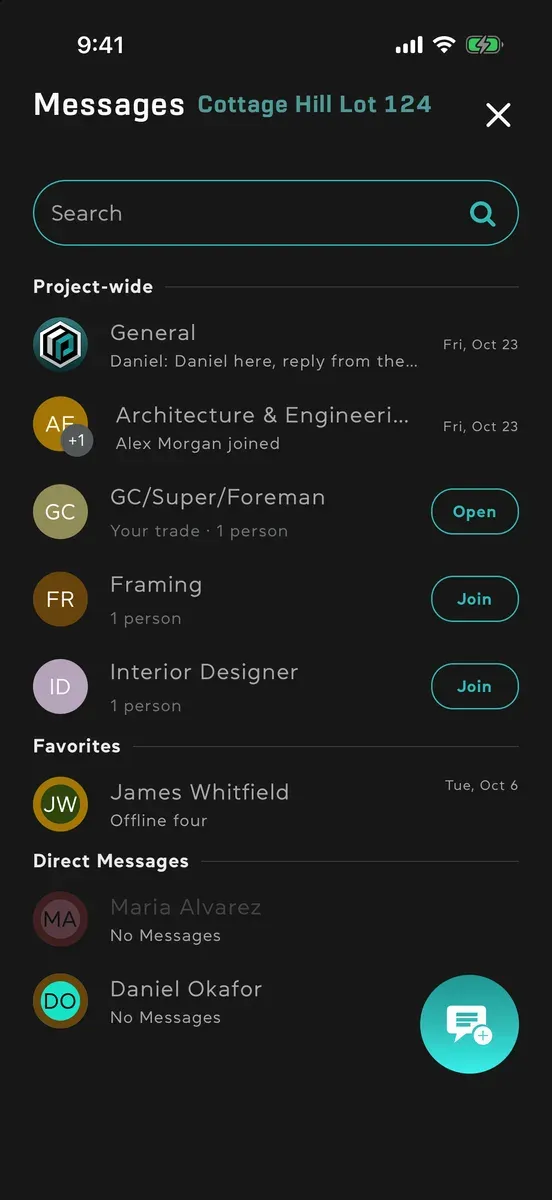
Each project has its own conversations, and everyone in it can take part, Viewers included. Open the project and tap Messages in the toolbar at the top of the plan. The list is in sections:
- Project-wide: General, then the trades’ conversations you are in, then a row for each other trade.
- Favorites: the conversations you have marked as favorites.
- Direct Messages: your conversations with one person, and your groups.
- Task Comments: the task lists you are involved in. See Task comments.
A conversation with something you haven’t read is in bold, with a dot.
Message someone, or start a group
Section titled “Message someone, or start a group”- In Messages, tap the round new message button at the bottom.
- Next to To:, type a name and pick the person. Pick more people for a group.
- For a group, the screen becomes New Group Message: give it a Group Name no other group in the project has.
- Write your first message and send it. The conversation opens with it.
You can also message someone from the project’s Contacts: swipe their row left and tap Message, or open them and tap Message. To ask someone new into the project, tap Invite someone new: see Invite people.
General and the trades’ conversations
Section titled “General and the trades’ conversations”General is for everyone in the project. Nobody can leave or delete it, but you can mute it.
Each trade on the project has a conversation too, with everyone who works as that trade in it. Your own trade’s row says Your trade: tap Open. You can’t leave it, only mute it. Another trade’s row says how many people work as it: tap Join to take part, and Leave Group later if you like. Your trade is the one on your profile, unless you picked another for this project by tapping your own trade in Contacts.
Look after a group
Section titled “Look after a group”Tap the group’s name at the top of the conversation to open Group Information, with its members, the Media shared in it and its Notifications setting. The group’s owner and its admins can also:
- change the name with the pencil, or set a picture with Add photo;
- add people with Add Members;
- tap a member for Promote to group admin or Remove from group.
A trade’s conversation has no name, picture or members to change.
A message you didn’t send is kept
Section titled “A message you didn’t send is kept”Leave a conversation halfway through a message and it waits for you, with its photos, videos and links, even after you close the app. The conversation’s row says Draft: and how the message starts. Drafts stay on the device you wrote them on, and signing out clears them.
Good to know
Section titled “Good to know”- Live. Messages, reactions and edits show as they happen, and you see who is typing.
- In your language. A message written in another language is translated for you, with Show original to see what was written.
- Bigger text. Pinch the messages to make them bigger or smaller. See Settings and language.
- On a tablet or computer, the open conversation sits beside the list. Make the window narrow and it becomes a screen of its own, with what you were typing still there.
- Offline, you can still write and start conversations. They wait in your Outbox: see Work offline.