

Find your way around
ProPlans has three places to know: the project list, the project you have open, and the menu that takes you between them.
The project list
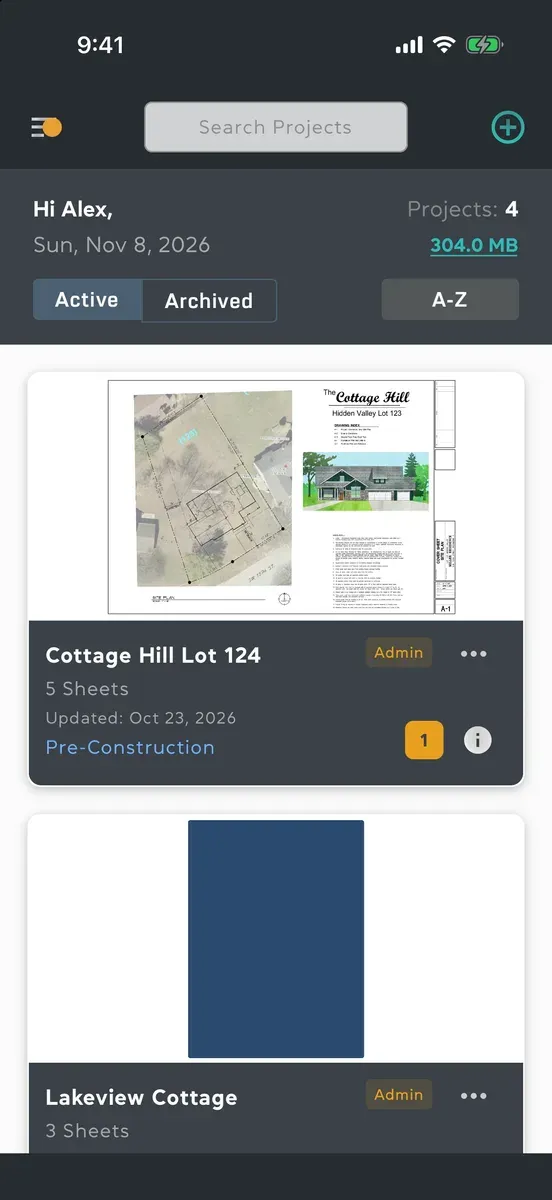
Section titled “The project list”After you sign in you land on the project list: every project you own or were invited to.
- Along the top: the menu button on the left (with a dot when you have unread notifications), Search Projects in the middle, and the plus button for a new project on the right.
- Active and Archived switch between the projects in use and the ones put away. A-Z and Recent change the order.
- Each card shows the project’s first sheet, its name and status, your access level, how many sheets it has, when it was last updated, and a count of its unread notifications.
- The i on a card shows the project’s information: status, address, owner and dates.
- The ⋯ on a card opens its menu: Invite People, Join QR Code, Download for offline use, Archive for me and Leave Project. The project’s owner gets Edit Info, Archive for all and Delete in place of the last two.
Tap a card (click it on a Mac) to open the project. On a tablet, or a wide window on a Mac, the cards sit two or three to a row and the menu stays open down the side.
Inside a project
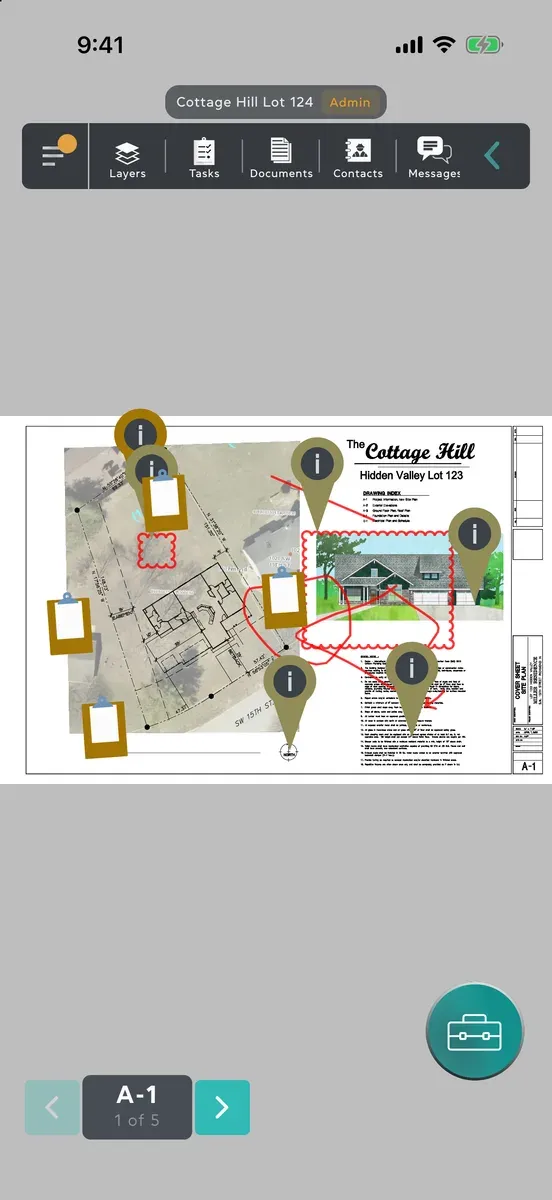
Section titled “Inside a project”A project opens on its first sheet. (Crew open on their task lists, with the sheet behind them.)
- The top bar names the project and your access level in it, with the menu button and the toolbar. The arrow at its end opens and closes the toolbar: Layers, Tasks, Documents, Contacts and Messages.
- At the bottom, arrows move to the next and previous sheet. Tap the sheet counter between them to see All Plans.
- The toolbox button on the sheet holds the markup tools: Notes, Freeform, Shapes and Tasks. It’s there for everyone but Viewers, and only Admins and Managers get Tasks.
The side menu
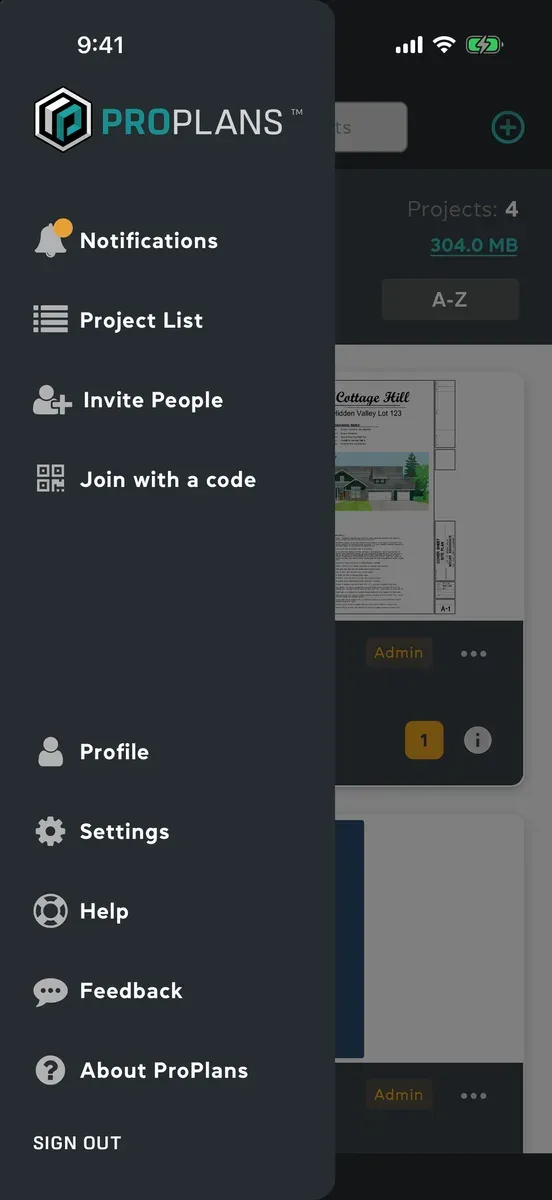
Section titled “The side menu”Tap the menu button to open it, from the project list or from inside a project.
- Notifications, then Project List, which takes you back to your projects.
- Invite People and Join with a code.
- Profile, Settings, Help, Feedback and About ProPlans.
- SIGN OUT at the bottom.
Profile, Settings, Feedback, About ProPlans and Notifications open over whatever you had open, and close back to it. Help opens this site in your browser, in the app’s language.
Going back
Section titled “Going back”The back arrow or the X at the top of a screen closes it. On Android the back button does the same, and closes an open menu first. On a Mac, Esc closes whatever is in front, one thing at a time.